




Typeform vs Gravity Forms vs JotForm | Accessible Form Builder
Forms are critical conversion points on websites where accessibility failures directly impact business outcomes . Choosing the right form builder that supports accessibility features is essential for creating forms that work for all users, including those with disabilities . This article compares three popular form builders—Typeform, Gravity Forms, and JotForm—and examines their accessibility capabilities in detail .
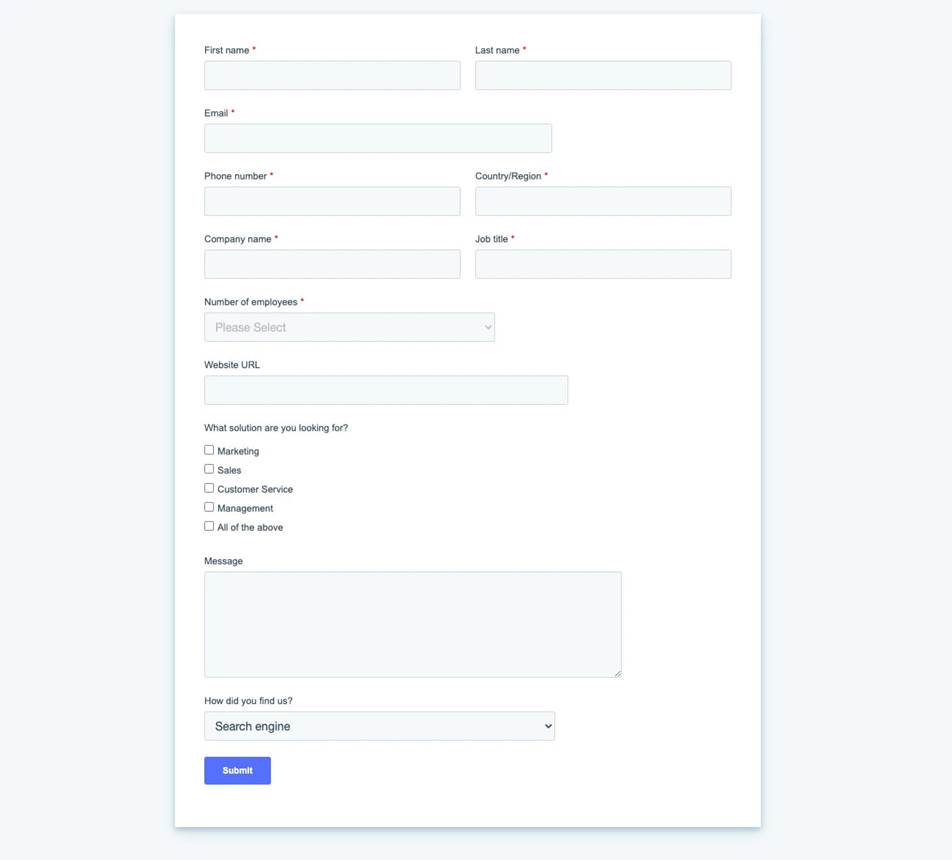
An example of a digital form with various input fields.
Why Form Accessibility Matters for Business
Accessible forms don’t just help people with disabilities—they improve the experience for all users and directly impact your bottom line . Research shows that implementing accessible forms leads to significant business improvements across multiple metrics .
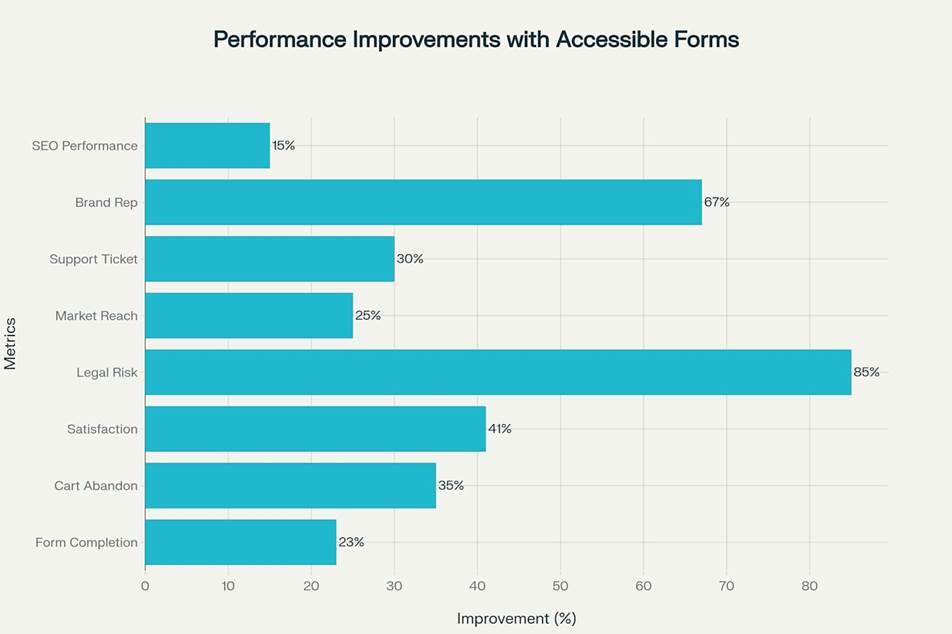
Performance improvements achieved by implementing accessible forms across key business metrics
The data speaks for itself: accessible forms can reduce legal risk by up to 85%, improve brand reputation by 67%, and increase customer satisfaction scores by 41% . When forms are accessible, businesses see concrete benefits in the form of increased conversions, reduced cart abandonment, and expanded market reach .
Forms that aren’t accessible can cost your business money and customers . Around 35% of pages include forms without clear labels or instructions, making them difficult for assistive technology users to complete . This accessibility gap represents lost revenue and increased legal exposure for businesses .

Form Builder Overview
Let’s look at the three form builders we’re comparing today :
Typeform
Typeform offers conversational forms with a step-by-step interface that presents one question at a time . This approach can reduce cognitive load for users, but it introduces unique accessibility challenges around keyboard navigation and screen reader support .
Typeform claims its default, full-screen respondent experience is WCAG 2.1, Level AA compliant . However, user testing has uncovered some inconsistencies, particularly with screen reader compatibility .
Gravity Forms
Gravity Forms is a WordPress plugin with a strong focus on technical accessibility . Version 2.5 and later includes significant accessibility improvements that make it easier to create WCAG 2.1 AA compliant forms .
The platform offers enhanced screen reader feedback, improved keyboard usability, and warnings in the admin about fields or settings with accessibility issues . However, not all features in Gravity Forms are accessible, so careful implementation is required .
JotForm
JotForm offers accessible forms that cover WCAG 2.1 Level A and Level AA guidelines . The platform includes a built-in accessibility checker and clear documentation on making forms accessible .
Users need to enable the Form Accessibility option and fix any detected issues . JotForm’s accessible forms work with screen readers, though testing indicates performance varies across different combinations of browsers and assistive technologies .
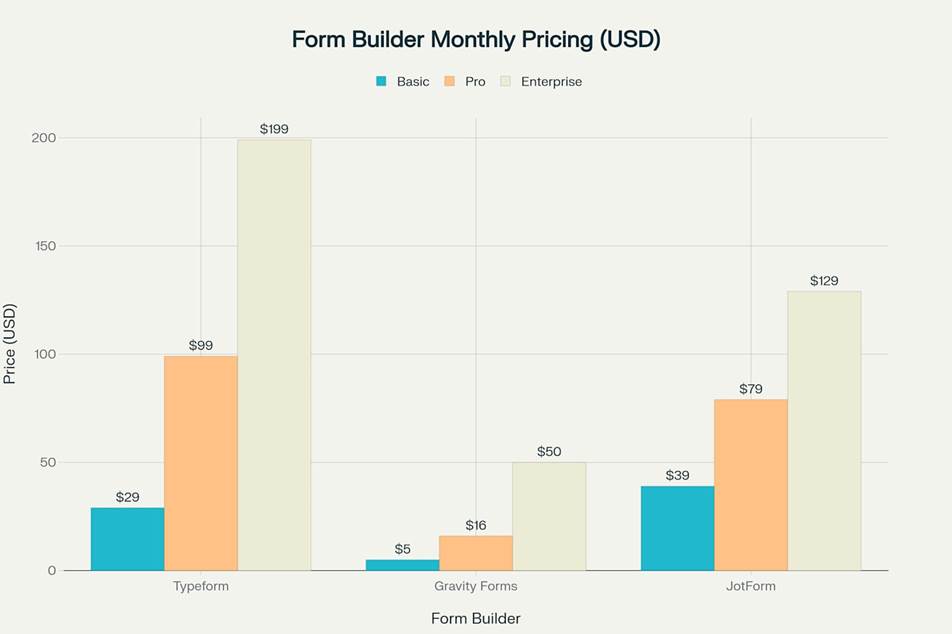
Monthly pricing comparison for Typeform, Gravity Forms, and JotForm across different plan tiers
WCAG Compliance Comparison
WCAG (Web Content Accessibility Guidelines) compliance is essential for ensuring forms work for users with disabilities . Here’s how the three form builders compare across key WCAG success criteria:
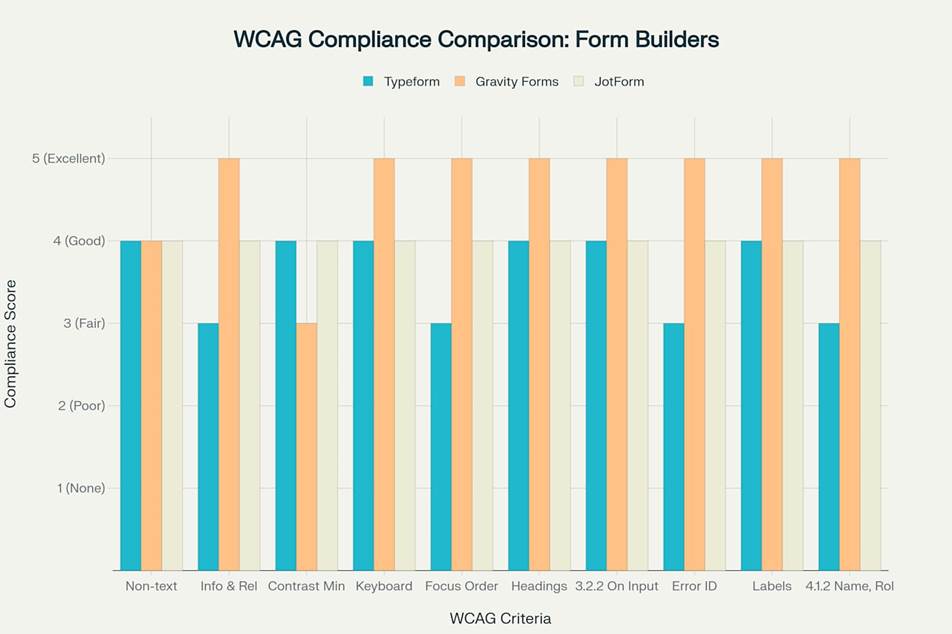
WCAG compliance comparison across three popular form builders showing relative performance
Typeform WCAG Compliance
Typeform states that its default form experience is WCAG 2.1 AA compliant, but testing reveals some limitations . The platform handles color contrast well and provides an accessibility checker that verifies forms against WCAG 2.1 Level AA standards .
However, Typeform has shown inconsistencies with screen reader announcements, with some users reporting form controls being announced as “object object” . Typeform’s conversational format also creates challenges for keyboard-only users who need to navigate back to previous questions .
Gravity Forms WCAG Compliance
Gravity Forms has made substantial improvements to accessibility in version 2.5 and later . The platform excels in areas like keyboard navigation, focus management, and error identification .
However, achieving WCAG compliance with Gravity Forms requires using the correct settings and may require additional plugins for features like color contrast checking . Gravity Forms provides warnings in the admin about fields or settings with accessibility issues, making it easier to identify and fix problems .
JotForm WCAG Compliance
JotForm’s accessible forms cover WCAG 2.1 Level A and Level AA guidelines when properly configured . The platform offers a form accessibility option that must be enabled, along with a badge that lets users know they can use assistive technologies .
JotForm provides documentation for its WCAG compliance in the form of a VPAT (Voluntary Product Accessibility Template) . While JotForm consistently scores “Good” across WCAG criteria, it rarely achieves “Excellent” ratings in expert evaluations .
Error Handling and Validation
Proper error handling is crucial for accessible forms, as users with disabilities may encounter unique challenges when correcting mistakes . All three form builders offer error validation, but their approaches and effectiveness vary .
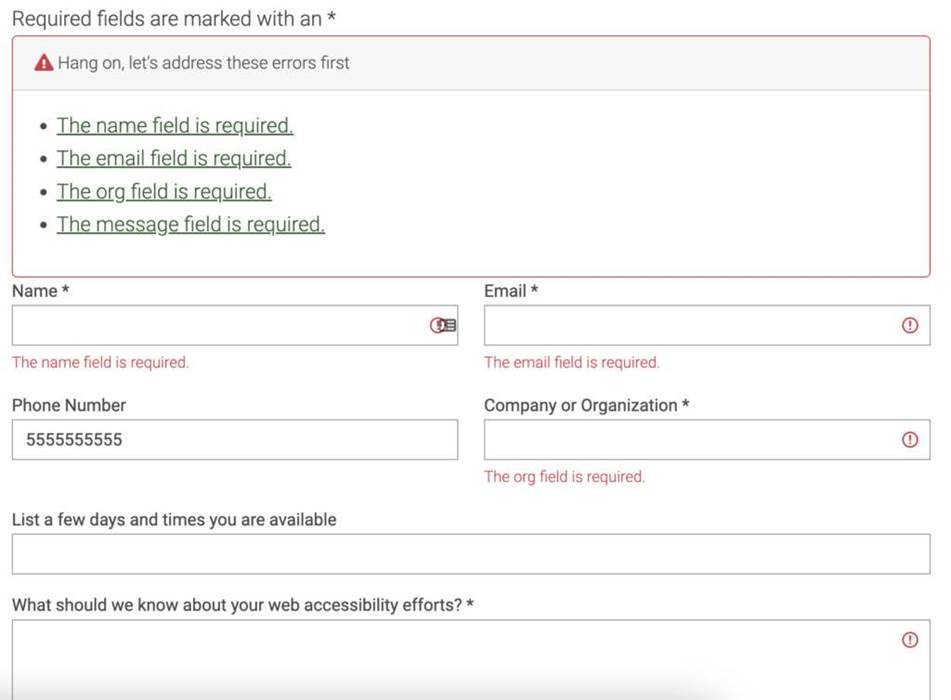
Example of a form with clear and accessible error messages
Typeform Error Handling
Typeform’s error handling is basic compared to the other options . The platform displays error messages one question at a time, which can be helpful for users with cognitive disabilities but may make it difficult to understand overall form requirements .
Screen reader testing has revealed inconsistencies in how Typeform announces errors . The platform doesn’t always use ARIA live regions effectively, which can leave screen reader users unaware that an error has occurred .
Gravity Forms Error Handling
Gravity Forms excels at error handling, providing both inline and summary error messages . The platform makes good use of ARIA attributes to ensure errors are properly announced to screen reader users .
Gravity Forms descriptions are accessible by screen readers, ensuring that error messages are properly conveyed to users of assistive technologies . The platform also supports custom validation messages, allowing developers to create more helpful error text .
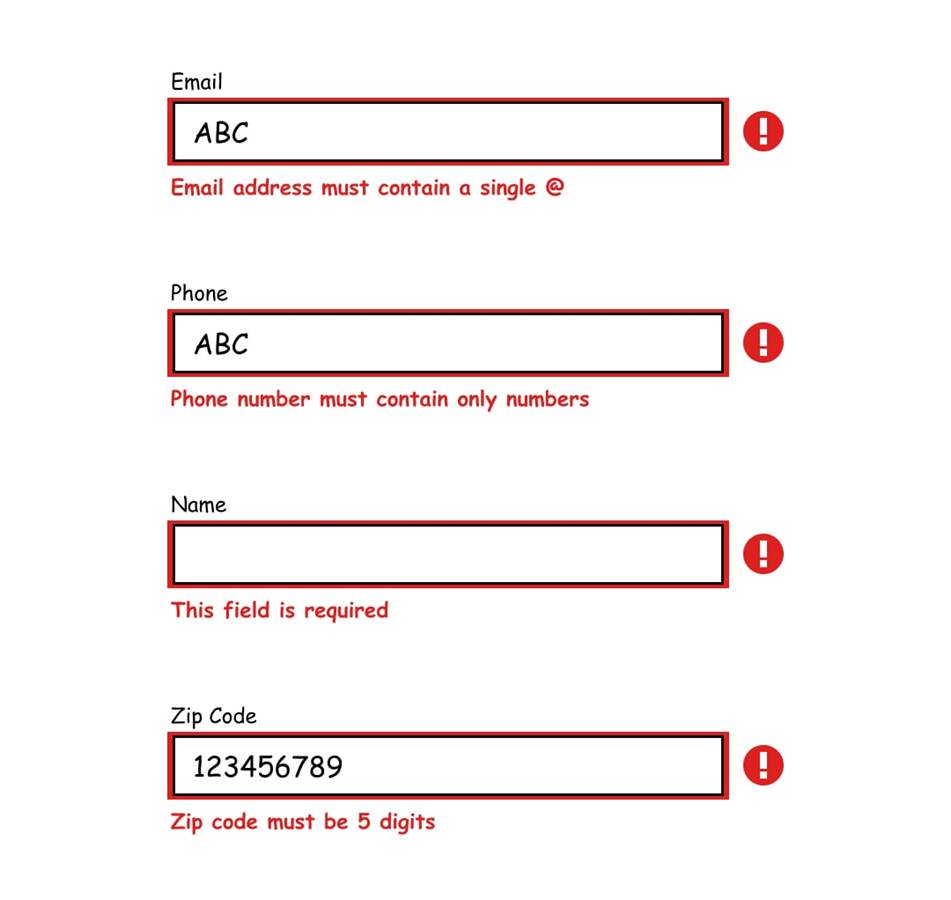
Examples of form fields with their corresponding error messages.
JotForm Error Handling
JotForm offers good error handling capabilities with clear visual indicators and programmatic associations between errors and form fields . The platform supports both inline validation and summary error messages .
However, JotForm’s implementation of ARIA live regions for error announcements could be more consistent across different form types . Users report that error messages are generally accessible but may require additional configuration for optimal screen reader support .

Keyboard Navigation
Keyboard navigation is essential for users who can’t use a mouse, including people with motor disabilities, vision impairments, or those using alternative input devices .
Typeform Keyboard Navigation
Typeform offers good keyboard navigation within its conversational interface . Users can tab through form elements and use Enter or Space to activate buttons and controls .
However, the conversational format can make it challenging to review previous answers or navigate between questions using only a keyboard . Typeform’s keyboard navigation works best when moving forward through the form rather than reviewing or editing previous responses .
Gravity Forms Keyboard Navigation
Gravity Forms provides excellent keyboard navigation, allowing users to tab through form elements in a logical order . The platform has been enhanced with improved keyboard usability in recent versions .
Form fields, buttons, and other interactive elements are all accessible via keyboard, and focus states are clearly visible . Gravity Forms also supports proper focus management when displaying conditional fields or error messages .
JotForm Keyboard Navigation
JotForm offers good keyboard navigation that works across different form types . The platform’s forms can be navigated using standard keyboard controls like Tab, Shift+Tab, and Enter .
Testing shows that JotForm’s keyboard navigation is consistent across most form elements, though complex widgets may present challenges . The platform supports standard keyboard patterns that align with WCAG requirements .
Screen Reader Compatibility
Screen reader compatibility ensures that users who are blind or have visual impairments can complete forms independently . Each form builder takes a different approach to screen reader support .
Typeform Screen Reader Compatibility
Typeform has limited screen reader compatibility compared to the other options . While the platform claims WCAG compliance, testing with screen readers has revealed inconsistencies .
One documented issue involves form controls being announced as “object object” in screen readers, making it impossible for users to understand what each option represents . Typeform is working to improve screen reader support but currently falls short of the other platforms in this area .
Gravity Forms Screen Reader Compatibility
Gravity Forms offers good screen reader compatibility, especially when paired with accessibility-focused plugins . The platform uses proper semantic HTML and ARIA attributes to ensure screen readers can interpret form elements correctly .
Recent versions of Gravity Forms include enhanced screen reader feedback, making it easier for users of assistive technologies to complete forms . There’s even a dedicated Gravity Forms Accessibility Enhancements plugin available for additional screen reader support .
JotForm Screen Reader Compatibility
JotForm provides good screen reader compatibility when the Form Accessibility option is enabled . The platform works with major screen readers like NVDA, JAWS, and VoiceOver .
Users need to use Firefox for optimal screen reader performance with JotForm, as stated in their documentation . By pressing Tab on their keyboard, screen reader users can navigate through each form element .

Multi-step Form Accessibility
Multi-step forms can improve completion rates by reducing cognitive load, but they introduce unique accessibility challenges . All three form builders support multi-step forms with varying degrees of accessibility .
Typeform Multi-step Approach
Typeform’s entire interface is built around a multi-step approach, presenting one question at a time . This can benefit users with cognitive disabilities by reducing distractions and focusing attention .
However, this approach can create challenges for screen reader users who may want to review the entire form before starting or who need to go back and edit previous answers . Typeform doesn’t provide a clear overview of all steps at once, which can make it difficult for some users to understand the full scope of the form .
Gravity Forms Multi-step Support
Gravity Forms supports multi-step forms through its Page field, which creates separate pages within a form . The platform handles focus management well when moving between steps, ensuring keyboard and screen reader users don’t get lost .
Progress indicators in Gravity Forms multi-step forms can be made accessible, though this requires careful implementation . The platform supports validation at each step before proceeding to the next, which aligns with best practices for accessible multi-step forms .
JotForm Multi-step Support
JotForm offers multi-step forms with good accessibility features when properly configured . The platform supports progress indicators and allows for validation at each step .
For accessibility, JotForm’s multi-step forms work best when clear instructions are provided at each step and focus is properly managed when moving between pages . The platform could improve its implementation of ARIA live regions to announce step changes more consistently for screen reader users .
Form Builder Accessibility Features
Beyond the core areas already discussed, each form builder offers additional accessibility features that can help create more inclusive forms .
Typeform Additional Features
Typeform includes an accessibility checker that verifies forms according to WCAG 2.1 Level AA standards . The checker looks for issues like color contrast, missing alt text, and question type accessibility .
The platform’s default theme meets accessibility requirements with sufficient color contrast ratios . Typeform also offers a gallery of accessible themes, making it easier to create forms that meet visual accessibility standards .
Gravity Forms Additional Features
Gravity Forms warns users about fields or settings with accessibility issues directly in the admin interface . This proactive approach helps form creators identify and fix problems before publishing .
The platform excels at semantic HTML and proper ARIA implementation, which benefits users of assistive technologies . However, Gravity Forms lacks a built-in accessibility checker, requiring third-party plugins for features like color contrast checking .
JotForm Additional Features
JotForm offers an accessibility badge that indicates to users that the form supports assistive technologies . The platform’s built-in accessibility checker helps identify and fix accessibility issues .
JotForm provides accessible color schemes for both classic and card forms, improving readability for users with visual impairments . The platform also offers documentation and support resources specifically focused on creating accessible forms .

Accessibility Testing and Verification
Testing forms with assistive technologies is essential to ensure they work for all users . Each form builder provides different levels of support for accessibility testing .
Typeform Testing Support
Typeform works with Fable to test new features with assistive technology users . This partnership helps identify and fix accessibility issues, though the platform doesn’t provide detailed testing documentation for users .
The built-in accessibility checker helps identify common issues, but manual testing with screen readers is still necessary to ensure forms work properly with assistive technologies . Typeform doesn’t offer specific guidance on how to test forms with different screen readers .
Gravity Forms Testing Support
Gravity Forms doesn’t include built-in testing tools but provides documentation on creating accessible forms . The platform recommends testing with screen readers like NVDA, JAWS, and VoiceOver .
For comprehensive testing, users may need to combine Gravity Forms with accessibility testing plugins or external tools . The platform’s strong support for standard HTML and ARIA attributes makes it compatible with most accessibility testing approaches .
JotForm Testing Support
JotForm recommends testing with NVDA on Firefox for optimal accessibility results . The platform provides documentation on how screen reader users can navigate forms using keyboard controls .
The built-in accessibility checker helps identify issues, but JotForm also encourages manual testing with assistive technologies . Like the other platforms, JotForm doesn’t provide detailed testing protocols or automated accessibility testing beyond basic checks .

Business Case for Accessible Forms
Investing in accessible forms offers significant business benefits beyond compliance . Research shows that accessible design drives better results across key performance indicators .
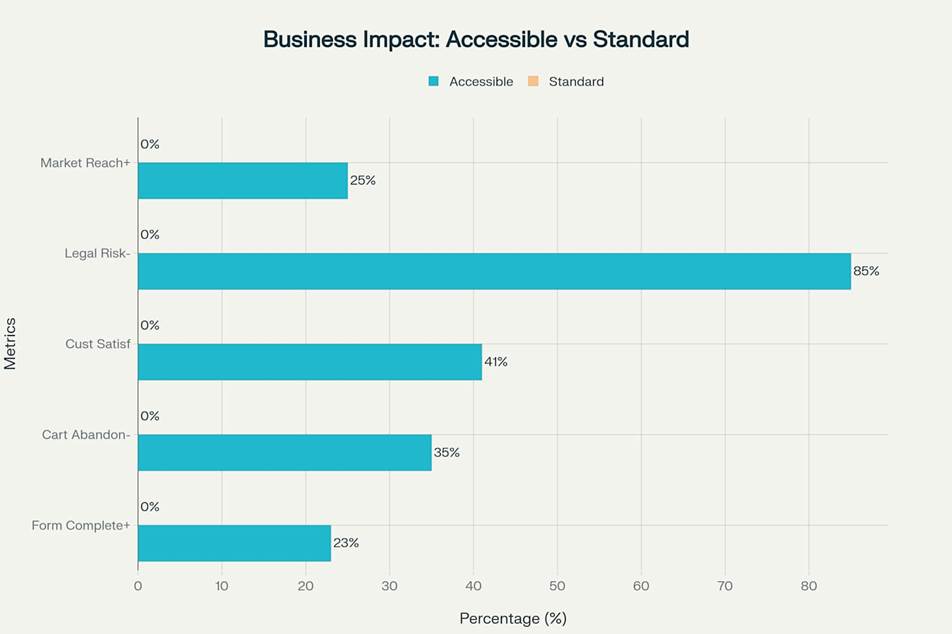
Business impact comparison showing how accessible forms outperform standard forms across key metrics
Forms that work for everyone expand your potential audience by up to 25% . Clear, structured content leads to better conversion rates, while properly tagged content performs better in email client filters and search engines .
Research indicates that businesses implementing accessible designs see revenue increases of 23% on average . This return on investment makes accessibility a smart business decision, not just a compliance requirement .
Choosing the Right Form Builder
When selecting a form builder for accessibility, consider your specific needs and technical capabilities
.
When to Choose Typeform
Typeform works best when you need conversational forms that present one question at a time . This approach can benefit users with cognitive disabilities and create a more engaging form experience .
The platform’s built-in accessibility checker and accessible themes make it relatively easy to create forms that meet basic accessibility standards . However, you’ll need to carefully test with screen readers to ensure full compatibility .
When to Choose Gravity Forms
Gravity Forms is ideal when you need deep WordPress integration and advanced accessibility features . The platform excels at technical accessibility aspects like keyboard navigation, focus management, and ARIA implementation .
If you have development resources, Gravity Forms provides the flexibility to create highly accessible forms that work well with assistive technologies . The platform’s excellent error handling and form validation make it a strong choice for complex forms .
When to Choose JotForm
JotForm offers a good balance of accessibility features and ease of use . The platform’s built-in accessibility checker and WCAG compliance make it accessible out of the box when properly configured .
JotForm works well when you need accessible forms without deep technical knowledge . The platform’s accessible color schemes and straightforward implementation make it a practical choice for many businesses .

Form Accessibility Best Practices
Regardless of which form builder you choose, follow these best practices to create accessible forms :
- Provide clear labels for all form fields
- Mark required fields both visually and programmatically
- Use descriptive error messages that explain how to fix problems
- Ensure forms can be completed using only a keyboard
- Test with multiple screen readers across different browsers
- Maintain sufficient color contrast for text and interface elements
- Use ARIA live regions to announce dynamic content changes
- Implement proper focus management, especially for multi-step forms
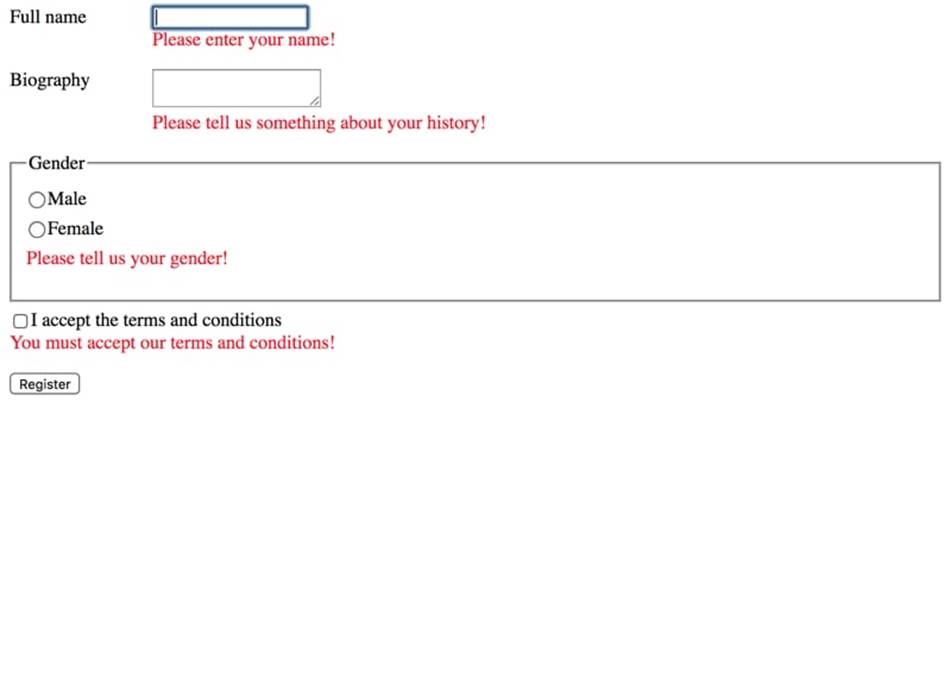
Example form demonstrating accessible error messages.
Using Automated Tools for Quick Insights (Accessibility-Test.org Scanner)
Automated testing tools provide a fast way to identify many common accessibility issues. They can quickly scan your website and point out problems that might be difficult for people with disabilities to overcome.
Visit Our Tools Comparison Page!
Run a FREE scan to check compliance and get recommendations to reduce risks of lawsuits

Final Thoughts
Choosing an accessible form builder is critical for creating forms that work for all users and maximize conversion rates . While Typeform, Gravity Forms, and JotForm all offer accessibility features, they excel in different areas .
Gravity Forms stands out for technical accessibility features and deep WordPress integration . JotForm offers good accessibility with minimal technical knowledge required . Typeform’s conversational approach can benefit some users but presents unique accessibility challenges .
Remember that accessibility is an ongoing process, not a one-time task . Regular testing with assistive technologies and staying current with accessibility standards will help ensure your forms remain accessible as technology evolves .
By prioritizing form accessibility, you’ll not only make your forms more inclusive but also improve business outcomes through higher completion rates, reduced cart abandonment, and expanded market reach .
Want More Help?
Try our free website accessibility scanner to identify heading structure issues and other accessibility problems on your site. Our tool provides clear recommendations for fixes that can be implemented quickly.
Join our community of developers committed to accessibility. Share your experiences, ask questions, and learn from others who are working to make the web more accessible.