




Which Design Tool Has Better Accessibility Features?
The shift toward creating more inclusive digital products has pushed designers to consider accessibility from the very start of the design process. While both Figma and Adobe XD have become popular design tools, their approaches to accessibility support differ significantly. Let’s dive into a head-to-head comparison of these design powerhouses, specifically looking at how they help designers create more accessible products through plugins and built-in features.
Popular Accessibility Plugins for Design Tools
Today’s designers are lucky to have numerous plugins that make checking for accessibility issues much easier than in the past. Both Figma and Adobe XD support third-party plugins that extend their functionality, with accessibility-focused tools leading the charge in popularity.
Stark – The Cross-Platform Accessibility Champion
Stark stands out as one of the most well-known accessibility plugins available for both Figma and Adobe XD. It provides a suite of tools designed to help designers create accessible products right within their design workflow.
According to its website, “More than 40,000 designers, developers, product managers, and accessibility experts from over 28,000 companies use Stark’s suite of integrated accessibility tools in their daily product development cycle”. This widespread adoption indicates its usefulness across the design community.
Stark offers several key features across both platforms:
- Contrast checker with color suggestions
- Vision simulator for various visual impairments
- Typography analysis
- Alt-text annotations
- Touch target size verification
- Focus order management
- Landmark identification
What makes Stark particularly valuable is its ability to provide automated solutions rather than just identifying problems. When it finds color contrast issues, for example, it offers smart suggestions that will pass WCAG requirements.
Figma-Specific Accessibility Plugins
Figma’s plugin ecosystem has grown rapidly, with numerous accessibility-focused options now available:
Able Plugin
Able is designed specifically for Figma users who want to test color contrast and color blindness while designing. It works by automatically comparing and analyzing the contrast between two selected layers.
What makes Able stand out is its seamless workflow integration – you can keep the plugin open while you work, checking contrast in real-time without needing to relaunch it for each test.
Adee Comprehensive Accessibility Tool
The Adee plugin takes an all-in-one approach to accessibility testing in Figma. It includes features for generating alt-text, simulating 8 different color-blindness scenarios, checking contrast ratios, and evaluating touch target sizes.
For designers who want a single plugin to handle most accessibility concerns, Adee offers an impressive range of functionality in one package.
Color Blind Plugin
This specialized plugin focuses entirely on color vision deficiencies. When you select elements in your Figma file, the Color Blind plugin creates 8 different versions, each showing how someone with a different type of color blindness would perceive your design.
Adobe XD Accessibility Features
Adobe XD takes a slightly different approach to accessibility, with both built-in features and plugin support:
Voice Control Support
Adobe XD stands out with its support for macOS Voice Control, allowing designers to access basic design features through voice commands. This feature directly improves the accessibility of the tool itself for designers with mobility impairments.
According to Adobe’s help documentation: “Use the macOS Voice Control to access some of the basic core design features of XD, including drawing tools, layers, properties in the Property Inspector, and the XD application menus”.
Plugin Ecosystem
Like Figma, Adobe XD supports various accessibility plugins including Stark. The Adobe help documentation notes: “If you want to develop an inclusive design, there are various Adobe XD plugins to help you test your design for inclusiveness. Check out the color blindness and color contrast plugins that let you simulate forms of color-blindness and check color contrast”.
Color Contrast Checkers | Real-time Feedback During Prototyping
Color contrast is one of the most fundamental aspects of accessible design, directly impacting the readability of text and the visibility of interface elements. Both Figma and Adobe XD offer tools to address this critical aspect of accessibility.
Understanding Color Contrast in Accessible Design
Before diving into the tools, it’s worth understanding why color contrast matters so much. As explained by Accessibility Test:
“Colour contrast is a fundamental concept in web design that refers to the difference in brightness or luminance between two elements, primarily foreground text and background surfaces. This relationship significantly affects readability and user experience, making it essential for effective digital communication”.
The WCAG guidelines specify minimum contrast ratios:
- At least 4.5:1 for normal text
- At least 3:1 for large text
Meeting these standards ensures content remains legible to users with visual impairments, including those with color blindness or low vision.
Figma’s Contrast Checking Capabilities
Figma’s approach to contrast checking relies heavily on plugins, with several strong options available:
Stark Contrast Checker in Figma
The Stark plugin for Figma provides real-time contrast checking that integrates smoothly with the design workflow. According to their YouTube walkthrough: “Helping you take the guesswork out of accessible color selection and speed up your workflow, the Stark Contrast Checker examines color contrast ratios across your design and offers Smart Suggestions to rectify colors that don’t pass”.
What gives Stark an edge is its ability to suggest alternative colors that maintain your design aesthetic while meeting accessibility standards. When you select a suggestion, it updates in real-time and can update every instance in a file when changing a parent component.
Other Figma Contrast Plugins
Beyond Stark, Figma users have access to plugins like Able and the Color Contrast Checker, both of which help ensure designs adhere to WCAG guidelines. Having multiple options gives designers flexibility to choose tools that best match their workflow.
Adobe XD’s Contrast Checking Tools
Adobe XD’s contrast checking capabilities also rely primarily on plugins:
Stark in Adobe XD
The Stark plugin functions similarly in Adobe XD as it does in Figma, offering contrast checking and color suggestions directly within the design environment.
Built-in Accessibility Support
Adobe XD has focused on making the tool itself more accessible, which indirectly supports creating more accessible designs. Their documentation states they aim to “conform to the AA success criteria for accessibility as defined by the World Wide Web Consortium WCAG 2.1 guidelines”.
Real-time Feedback Comparison
When comparing the real-time feedback capabilities between platforms:
- Integration into workflow: Figma’s plugins, especially Stark and Able, allow designers to leave the plugin open while working, providing instant feedback without interrupting the design flow. This creates a more seamless experience.
- Update speed: Stark’s implementation in Figma allows for real-time updates when changing colors, including updating all instances of a component. This makes it particularly powerful for design system work.
- Suggestion quality: Stark’s color suggestions on both platforms are thoughtfully generated to maintain visual harmony while meeting accessibility standards.
Export Settings | Generating Developer-Ready, Accessible Code Snippets
For designs to be truly accessible, they need to be properly implemented in code. Both Figma and Adobe XD offer export options that can help bridge the gap between design and development.
Figma’s Export Capabilities
Figma offers several ways to export designs as code or assets:
Inspect Mode vs. Dev Mode
Figma previously had “Inspect” mode, which has largely been replaced by “Dev Mode” for paid seats. However, users with view-only access can still access many inspection features through the Properties tab.
As explained in a Figma tutorial: “No matter what plan, seat type, or file access you have, you can get the information you need”.
Third-Party Export Options
Plugins like Anima allow Figma users to export designs as HTML code:
“Step 1: Launch the Anima plugin in Figma (in Edit or Dev Mode).
Step 2: Select the component or frame to export. The code is being generated.
Step 3: Copy the code, preview it in the playground, or download the package”.
The exported code packages typically include HTML, CSS, images, and fonts, providing a complete set of assets for developers.
Accessibility Considerations in Figma Exports
While Figma’s native export features don’t specifically target accessibility, plugins like Anima offer options to enhance the accessibility of exported code:
“You can personalize your code directly within Figma with Anima’s AI features. Examples include: Adding ARIA tags and semantic HTML for accessibility”.
This capability helps ensure that accessibility considerations in the design phase carry through to implementation.

Adobe XD’s Export Capabilities
Adobe XD also provides options for exporting designs as code:
Export to HTML
Like Figma, Adobe XD can use third-party plugins like Anima to export designs as HTML code:
“In the Export Options window that appears, select the ‘Zip File’ option at the top (make sure you also select ‘Pure HTML’ under ‘Code Framework’ and ‘Auto Flex’)”.
The process involves syncing the design to the Anima web app and then downloading the code package, which contains HTML, CSS, and other assets.
Design Specs and Developer Handoff
Adobe XD includes features for creating design specs that developers can review. These specs allow developers to see exact measurements, colors, and assets needed for implementation.
The platform also supports commenting on design specs, which can be useful for highlighting accessibility considerations: “You can comment on design specs, use a commenting pin to pin the exact location of the comment, and move the pin if necessary”.
Comparison of Export Capabilities
When comparing the export capabilities of both platforms:
- Code quality: Both platforms rely heavily on third-party plugins like Anima for HTML exports, with similar results in terms of code quality.
- Accessibility options: Anima’s integration with both platforms offers accessibility enhancements like ARIA tags, though these are additional features rather than default behaviors.
- Developer experience: Both platforms provide ways for developers to inspect designs and extract needed information, though the specific workflows differ.
- Integration with accessibility testing: Neither platform’s export features directly integrate with accessibility testing tools, requiring additional steps to verify the accessibility of exported code.
Team Collaboration | Commenting Features for Accessibility Reviews
Creating accessible designs often requires input from multiple team members, making collaboration features critical for accessibility reviews.
Figma’s Collaboration Features
Figma has built its reputation largely on its real-time collaboration capabilities:
Comment System
Figma’s commenting system allows team members to leave feedback directly on specific elements of a design:
“View and reply to comments from their location in the canvas, or from the right sidebar. To add or manage comments, click in the toolbar or press C”.
Comments can be pinned to specific locations or elements, making it easy to provide feedback on accessibility issues like color contrast or touch target sizes.
Editing and Moving Comments
Figma allows users to edit comments they’ve posted, which is useful for clarifying feedback or adding additional information:
“Select the comment in the canvas, or from the right sidebar in comment mode. Click to open the comment menu. Select the Edit… option to edit the content of your comment”.
Comments can also be moved to different locations if needed, ensuring feedback is associated with the correct elements.
Handling Comments on Moved Elements
When elements with comments are moved in Figma, the behavior depends on how they’re moved:
“If you’ve pinned a comment to a specific layer, you may be able to move both the layer and its comments. Your method for moving the layer, and the layer’s final destination, impact the comment’s location”.
This ensures that feedback remains connected to the relevant elements even as designs evolve.
Adobe XD’s Collaboration Features
Adobe XD also offers collaboration features focused on commenting and review:
Comment System
Adobe XD allows team members to comment on designs and design specs:
“You can comment on design specs, use a commenting pin to pin the exact location of the comment, and move the pin if necessary”.
The platform includes features like @mentions to notify specific team members about feedback.
Comment Management
Adobe XD provides options for managing comments, including filtering resolved comments and moving comments between resolved and unresolved states.
Collaboration for Accessibility Reviews
When it comes specifically to accessibility reviews, both platforms have strengths and limitations:
Figma’s Accessibility Review Workflow
Figma’s real-time collaboration makes it well-suited for accessibility reviews where multiple team members need to provide input. The ability to pin comments to specific elements helps when pointing out accessibility issues like insufficient contrast or problematic interactions.
Third-party plugins like Stark enhance this capability by allowing teams to run accessibility checks and then discuss the results using Figma’s native commenting features.
Adobe XD’s Accessibility Review Workflow
Adobe XD’s commenting features similarly support accessibility reviews, with the ability to pin comments to specific locations and notify team members.
The platform’s support for Voice Control also demonstrates a commitment to accessibility within the tool itself, which may translate to better awareness of accessibility issues among design teams.
Comparison of Collaboration Features
When comparing the collaboration features for accessibility reviews:
- Real-time collaboration: Figma’s real-time collaboration is generally considered stronger, allowing multiple team members to work simultaneously on accessibility reviews.
- Comment specificity: Both platforms allow pinning comments to specific elements, which is crucial for accessibility feedback.
- Integration with accessibility tools: Both platforms support the Stark plugin, allowing teams to run accessibility checks and then discuss the results within the same environment.
- Review workflows: Figma’s workflow for handling comments on moved elements provides more flexibility as designs evolve.
Additional Accessibility Features in Design Tools
Beyond the core areas of color contrast, export settings, and collaboration, both Figma and Adobe XD offer additional features that support accessible design.
Vision Simulators
Both platforms support vision simulation through plugins:
Figma’s Vision Simulation
Through plugins like Stark and Color Blind, Figma users can simulate various visual impairments to see how their designs appear to users with different needs.
The Color Blind plugin, for example, “displays your designs according to the 8 different types of color vision deficiencies. Make a selection in your Figma file and the plugin will clone it to create these 8 different versions”.
Adobe XD’s Vision Simulation
Adobe XD similarly supports vision simulation through plugins like Stark, allowing designers to test how their designs appear to users with visual impairments.
Touch Target Verification
Ensuring interactive elements are large enough for users with motor impairments is another important aspect of accessible design:
Figma’s Touch Target Tools
Plugins like Stark and Adee for Figma include features to verify touch target sizes, ensuring they meet accessibility guidelines for minimum target sizes.
Adobe XD’s Touch Target Tools
Adobe XD users can access similar functionality through the Stark plugin, which includes touch target verification among its features.
Focus Order Management
Proper focus order is critical for keyboard navigation and screen reader users:
Figma’s Focus Order Tools
The Stark plugin for Figma includes focus order management, allowing designers to define and verify the order in which interactive elements receive focus.
Adobe XD’s Focus Order Tools
Adobe XD users have access to similar functionality through the Stark plugin, though the implementation may differ slightly between platforms.
Cost and Availability Considerations
When choosing between Figma and Adobe XD for accessible design, cost and availability are important factors:
Figma Pricing
Figma offers a free tier with limited features, with paid plans starting at $12 per editor per month for the Professional tier. The free tier includes access to the Community plugins, though some plugins like Stark have their own pricing models.
Adobe XD Pricing
Adobe XD is available as part of the Adobe Creative Cloud subscription, with plans starting at $9.99 per month for a single app. Like Figma, some plugins like Stark have their own pricing.
Stark Pricing
The Stark plugin itself is available with both free and paid tiers. The free tier includes basic features like the Contrast Checker and Vision Simulator, while the paid tiers (starting at $5 per month) include additional features like Touch Targets, Focus Order, and Alt-Text.

Which Tool Is Better for Accessible Design?
After examining both platforms and their accessibility features, which one comes out on top? The answer depends on your specific needs and workflow.
Figma’s Strengths
- More robust plugin ecosystem with multiple accessibility-focused options
- Stronger real-time collaboration features for team accessibility reviews
- Better integration of accessibility plugins into the design workflow
- More seamless handling of comments during design iterations
Adobe XD’s Strengths
- Built-in support for Voice Control improves tool accessibility
- Strong focus on accessibility in the tool itself
- Similar plugin support for key accessibility features
- Tight integration with other Adobe products
Practical Tips for Accessible Design in Either Tool
Regardless of which tool you choose, here are some practical tips for creating more accessible designs:
1. Start with Accessibility in Mind
Don’t leave accessibility checks until the end of the design process. Consider accessibility from the beginning by:
- Choosing color schemes that already meet contrast requirements
- Planning keyboard navigation paths early
- Considering touch target sizes from the start
2. Use Multiple Testing Methods
Don’t rely solely on automated tools:
- Use plugins to check for basic issues like color contrast
- Test keyboard navigation manually
- Review designs with actual assistive technology when possible
3. Create Accessibility-focused Design Systems
Build accessibility into your design system:
- Include contrast-compliant color palettes
- Define minimum touch target sizes
- Specify focus states for interactive elements
- Document accessibility considerations for each component
4. Involve Users with Disabilities
The best way to ensure your designs are truly accessible is to involve users with disabilities in your testing process. Their feedback will reveal issues that automated tools might miss.
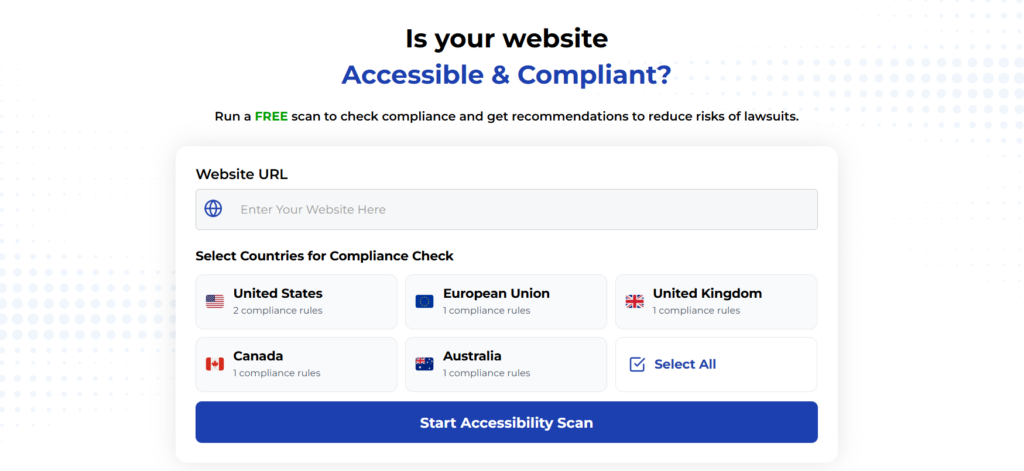
Using Automated Tools for Quick Insights (Accessibility-Test.org Scanner)
Automated testing tools provide a fast way to identify many common accessibility issues. They can quickly scan your website and point out problems that might be difficult for people with disabilities to overcome.
Visit Our Tools Comparison Page!
Run a FREE scan to check compliance and get recommendations to reduce risks of lawsuits
Final Thoughts
Both Figma and Adobe XD offer strong options for creating accessible designs, particularly when enhanced with plugins like Stark. Your choice between them should be based on:
- Your team’s existing workflow and tool preferences
- The specific accessibility features most important to your projects
- Budget constraints and pricing considerations
- Integration needs with other tools in your tech stack
What matters most isn’t which tool you use, but how you use it. With either Figma or Adobe XD, adopting an accessibility-first mindset and making use of available plugins can help ensure your designs work for everyone, regardless of their abilities.
By making accessibility a priority from the start of the design process, you’ll create better experiences for all users while potentially saving time and resources that would otherwise be spent retrofitting designs for accessibility later in the development process.
Want More Help?
Try our free website accessibility scanner to identify heading structure issues and other accessibility problems on your site. Our tool provides clear recommendations for fixes that can be implemented quickly.
Join our community of developers committed to accessibility. Share your experiences, ask questions, and learn from others who are working to make the web more accessible.